SVC
Sentinel Windows service
DevilGuardSentinel is the main protection component. It starts with Windows, watches for the configured DFBHD executable and sends protection status while the game is running.
Devil-Guard PC is the player-side protection component used by participating Delta Force: Black Hawk Down servers. Its background Sentinel service confirms that the approved game and protection client are active, reports current protection status and signed attestations to the Devil-Guard website, and helps server operators respond when protection is missing or a verified detection is reported.
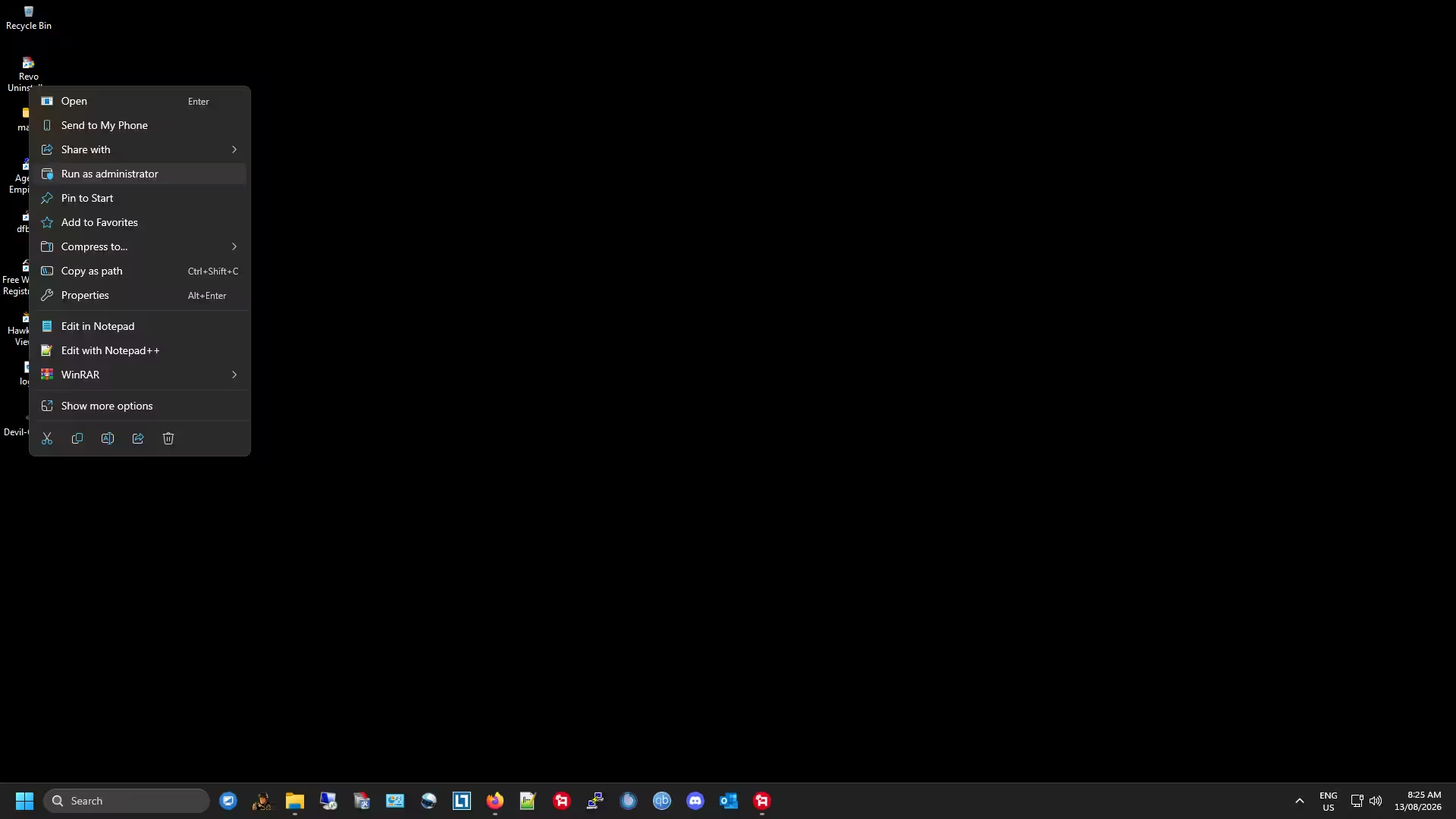
Run the Devil-Guard PC setup as administrator.
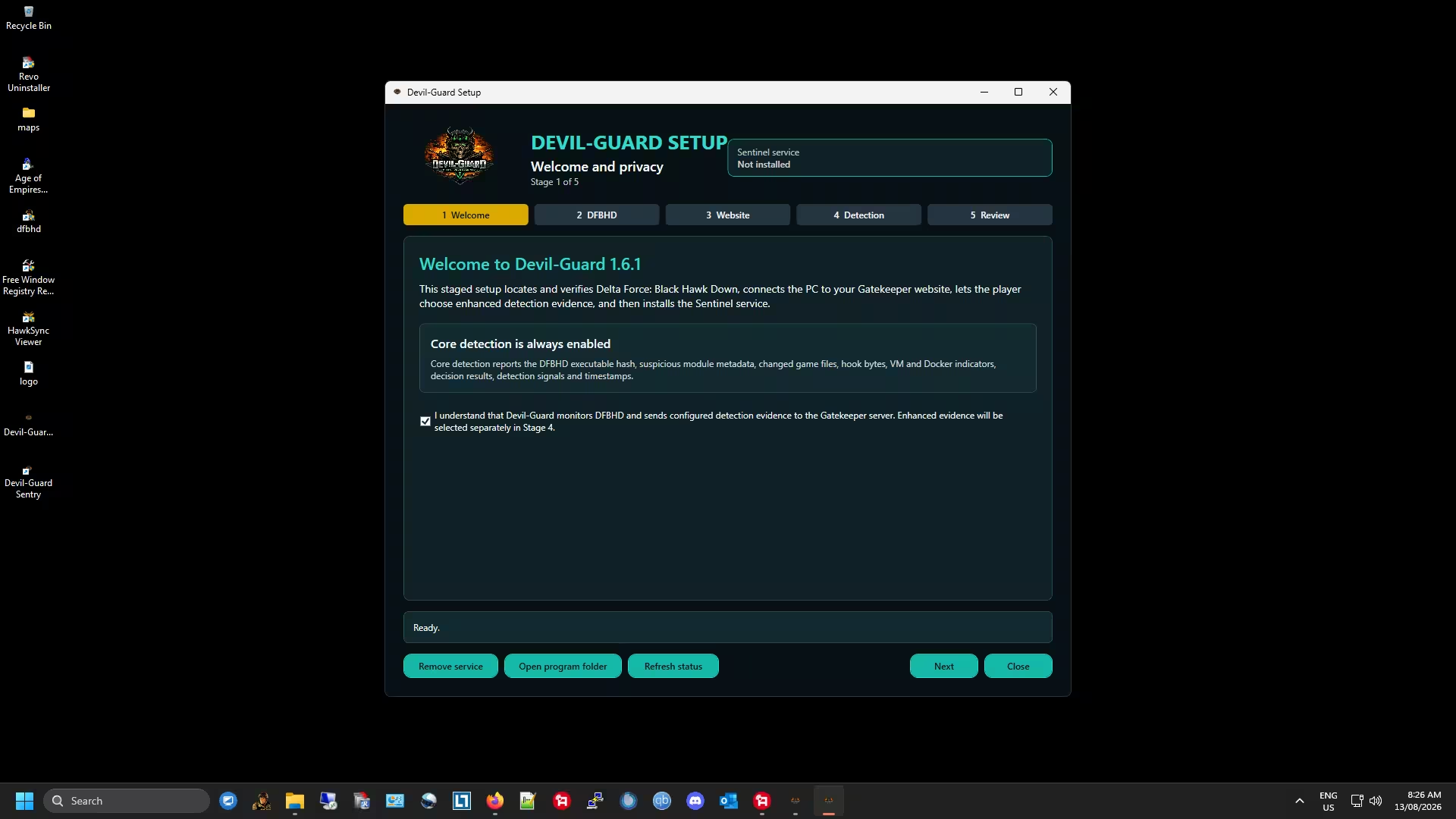
Read and accept the setup conditions to continue.
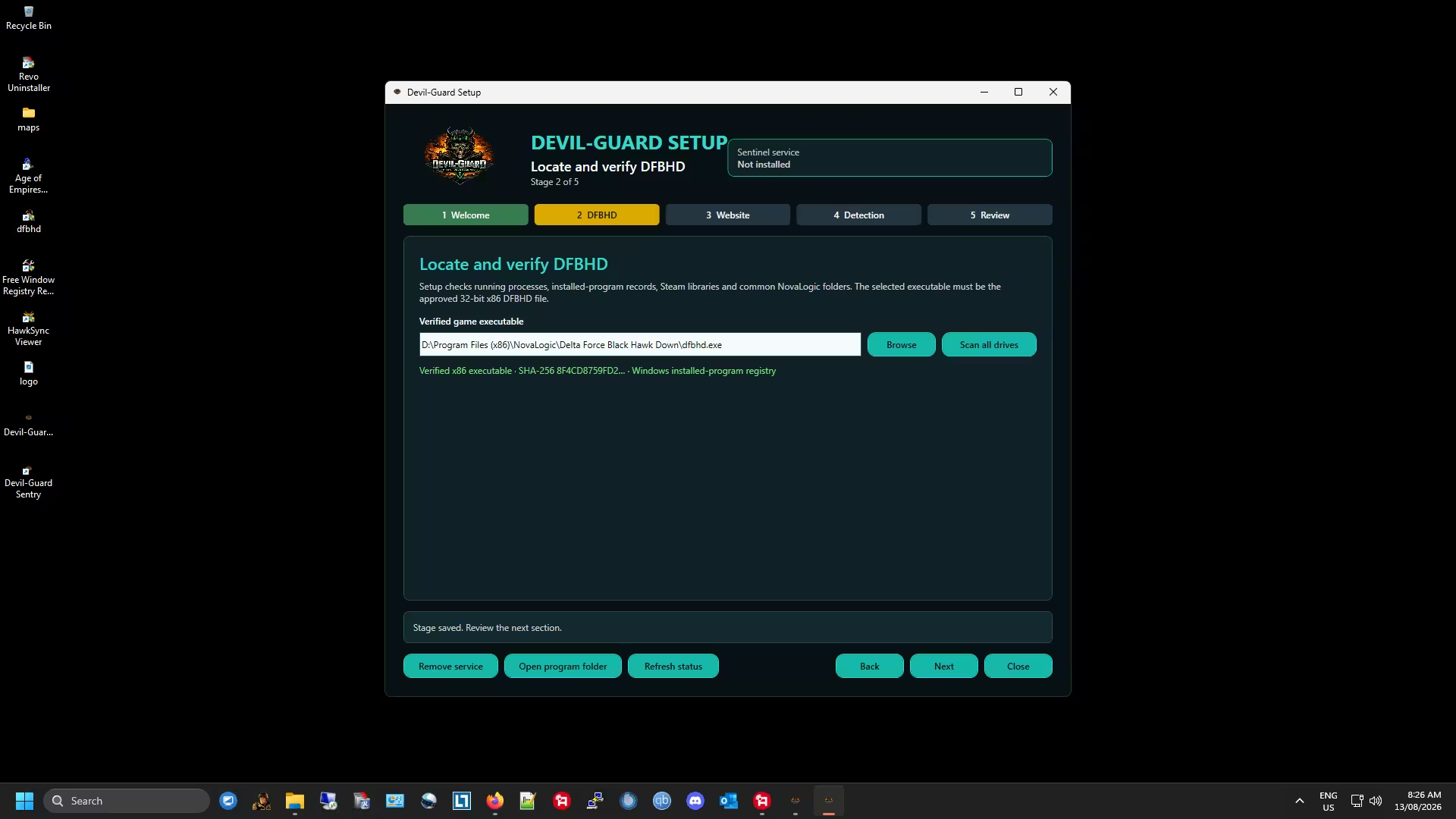
Select your DFBHD.exe. If the hash validation fails, get the approved executable from the Devilish Services downloads page.
Open Devilish Services Downloads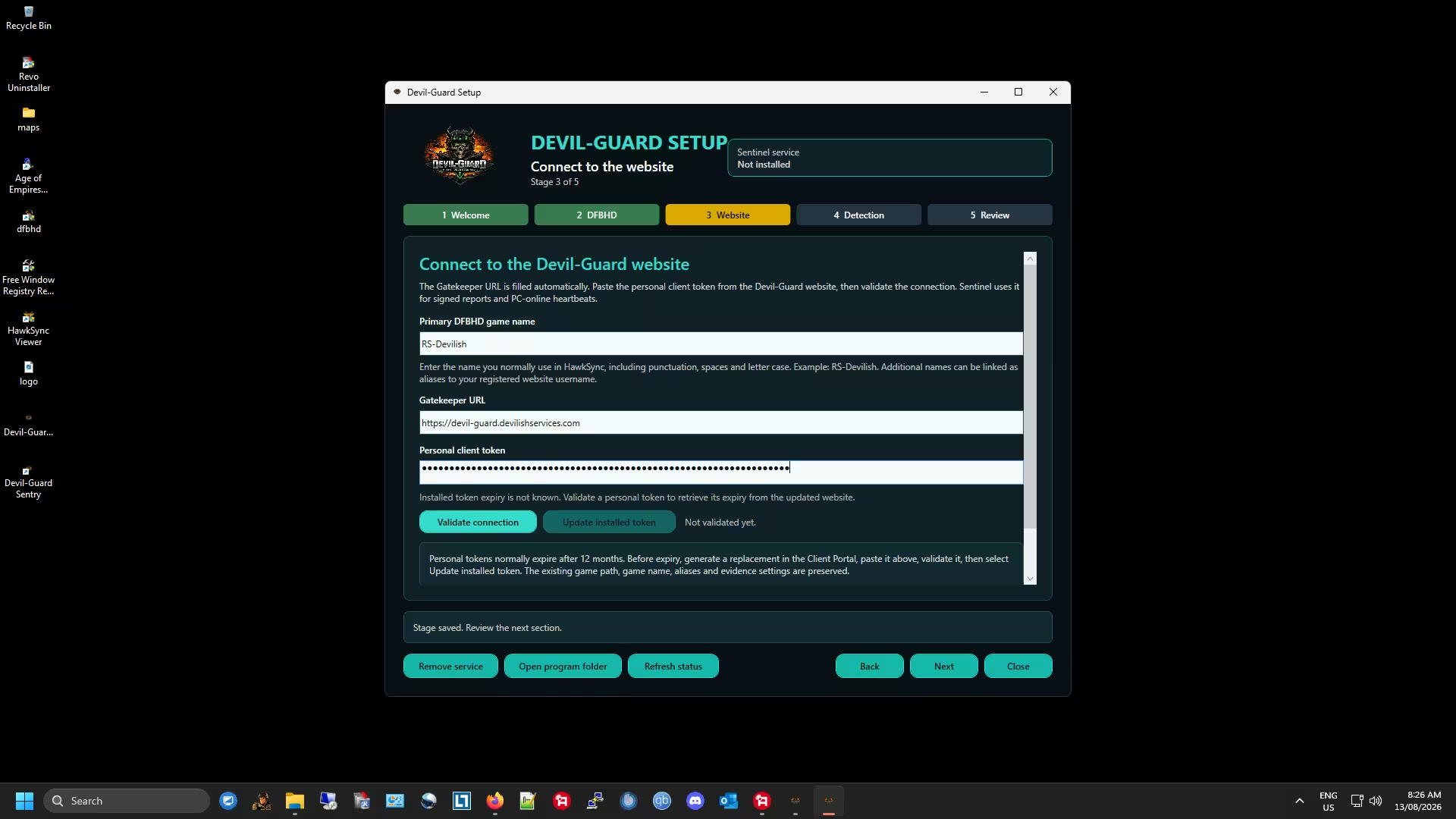
Primary DFBHD name is your player name. Get your personal token from the Devil-Guard website under Client Portal after you have registered on the site.
Open Client Portal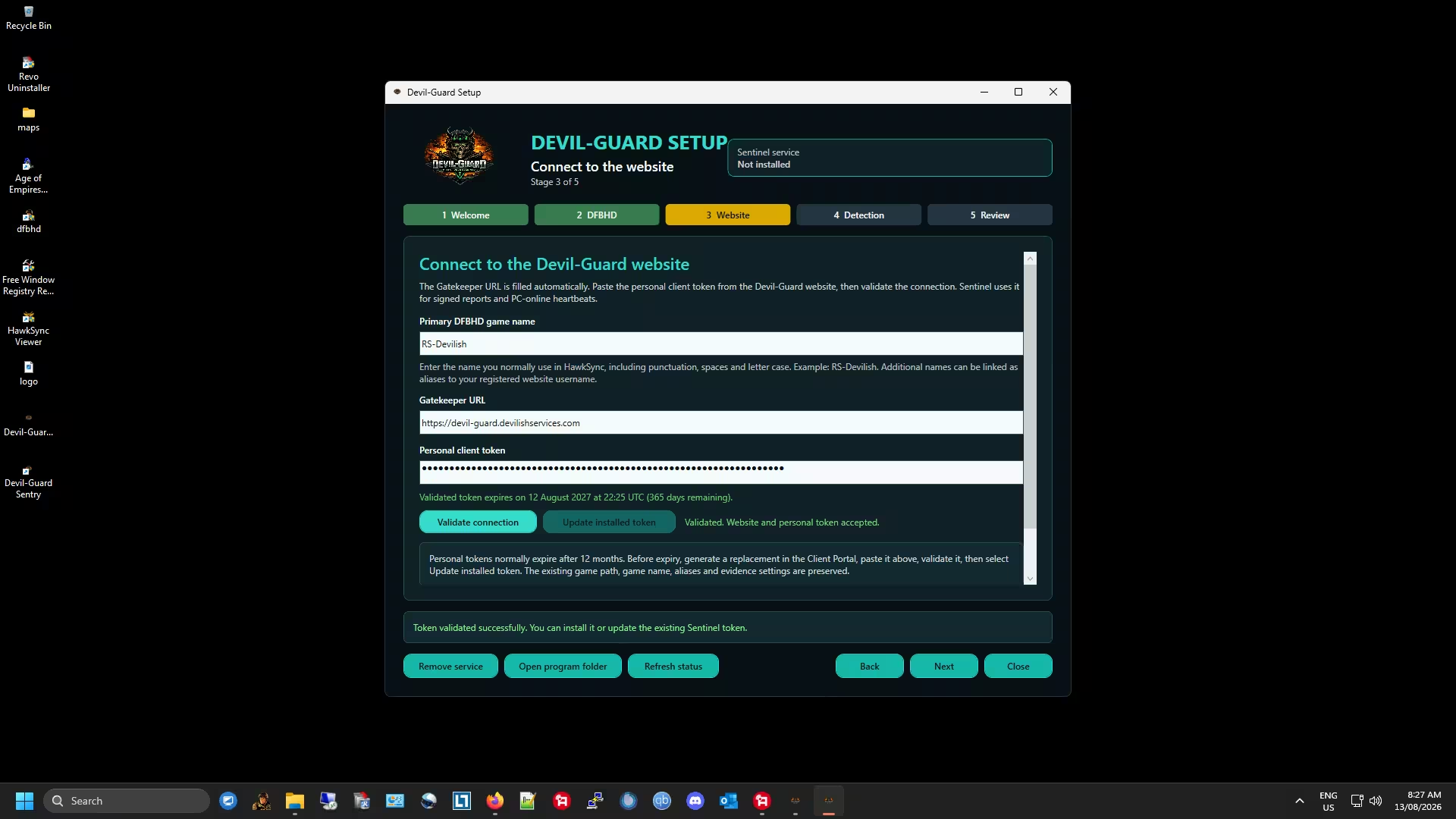
Click Validate. If everything validates successfully, continue to the next step.
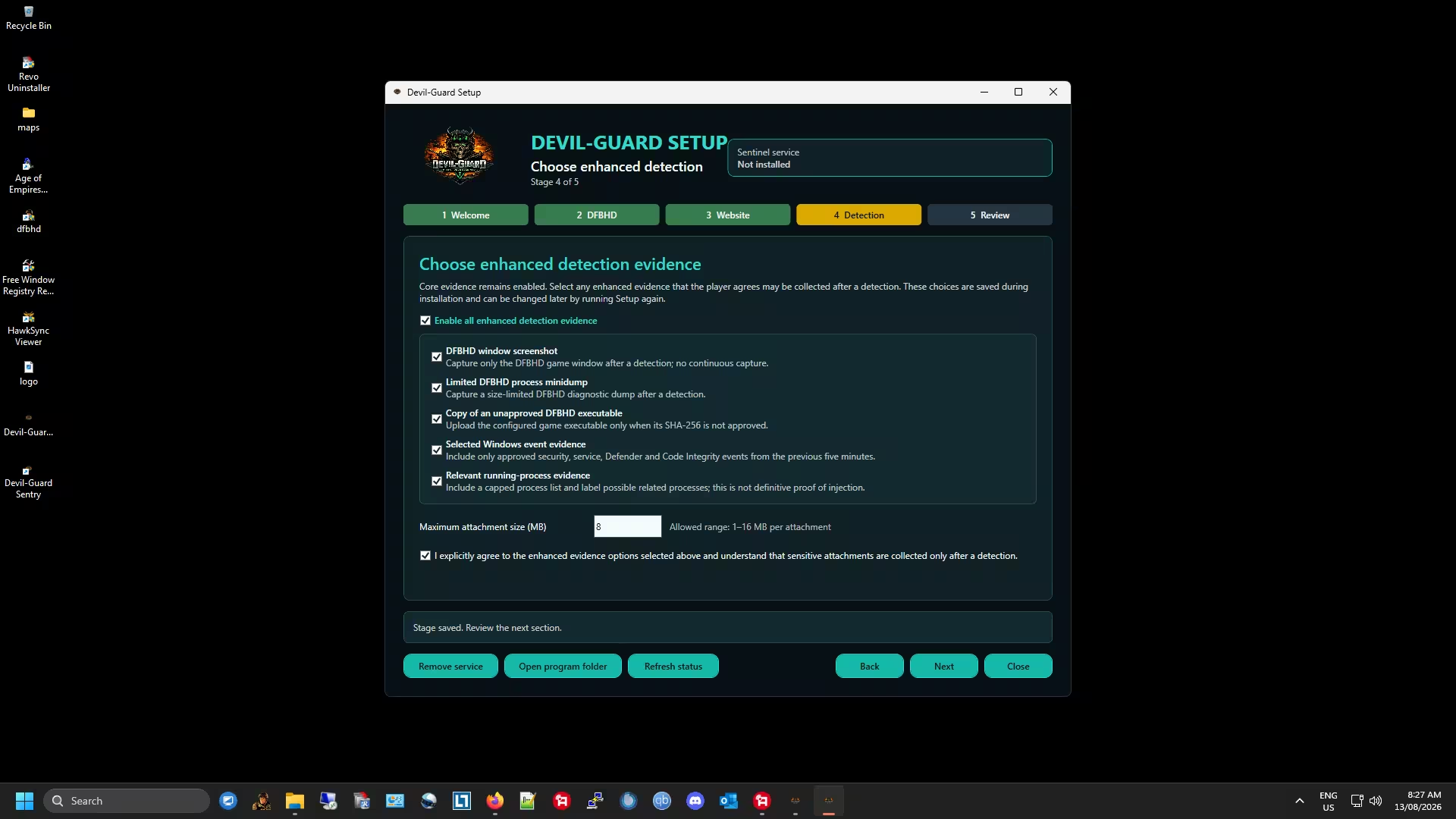
Read all conditions, check the required boxes, then click Next.
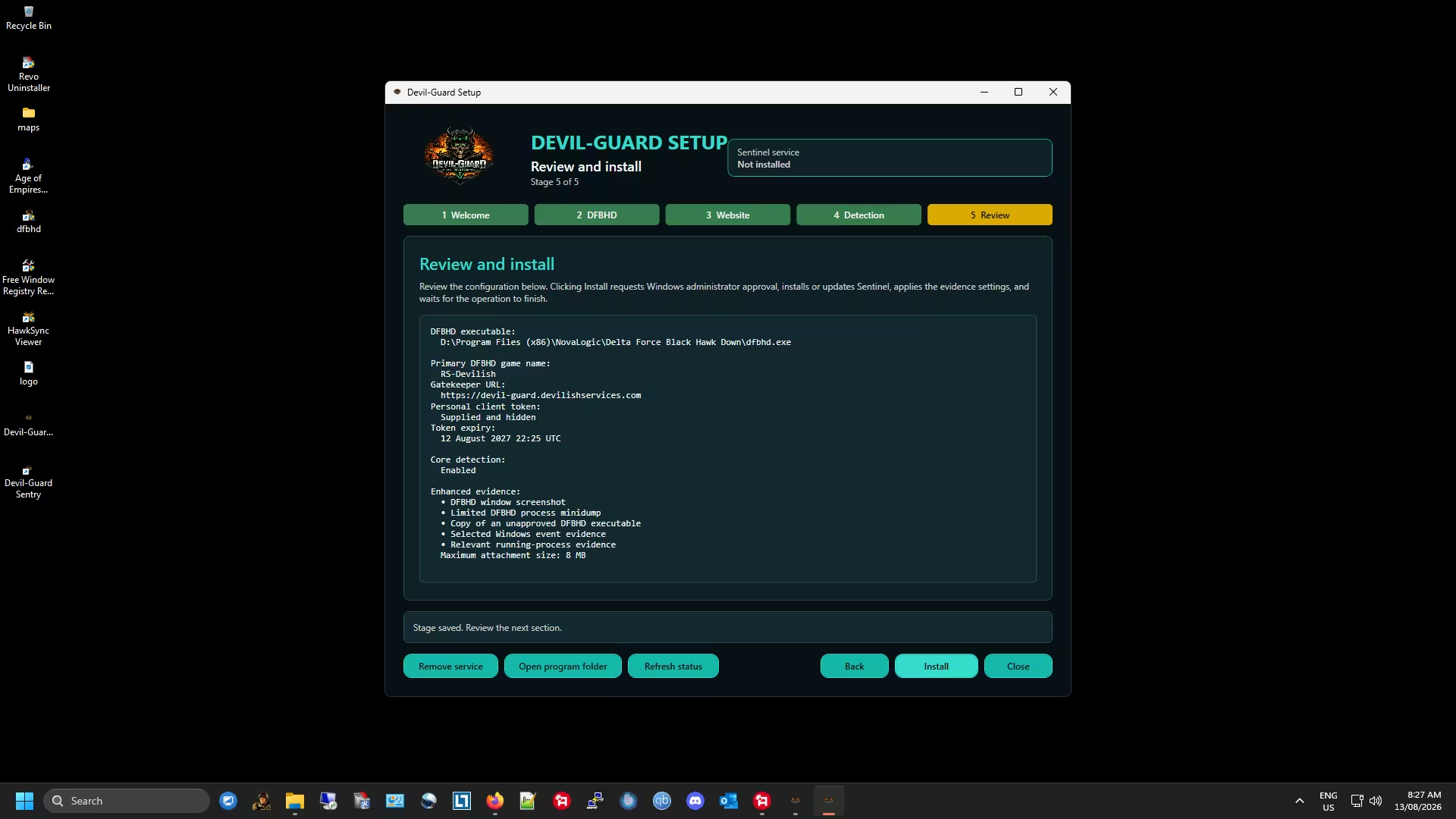
Click Install to begin installing Devil-Guard PC.
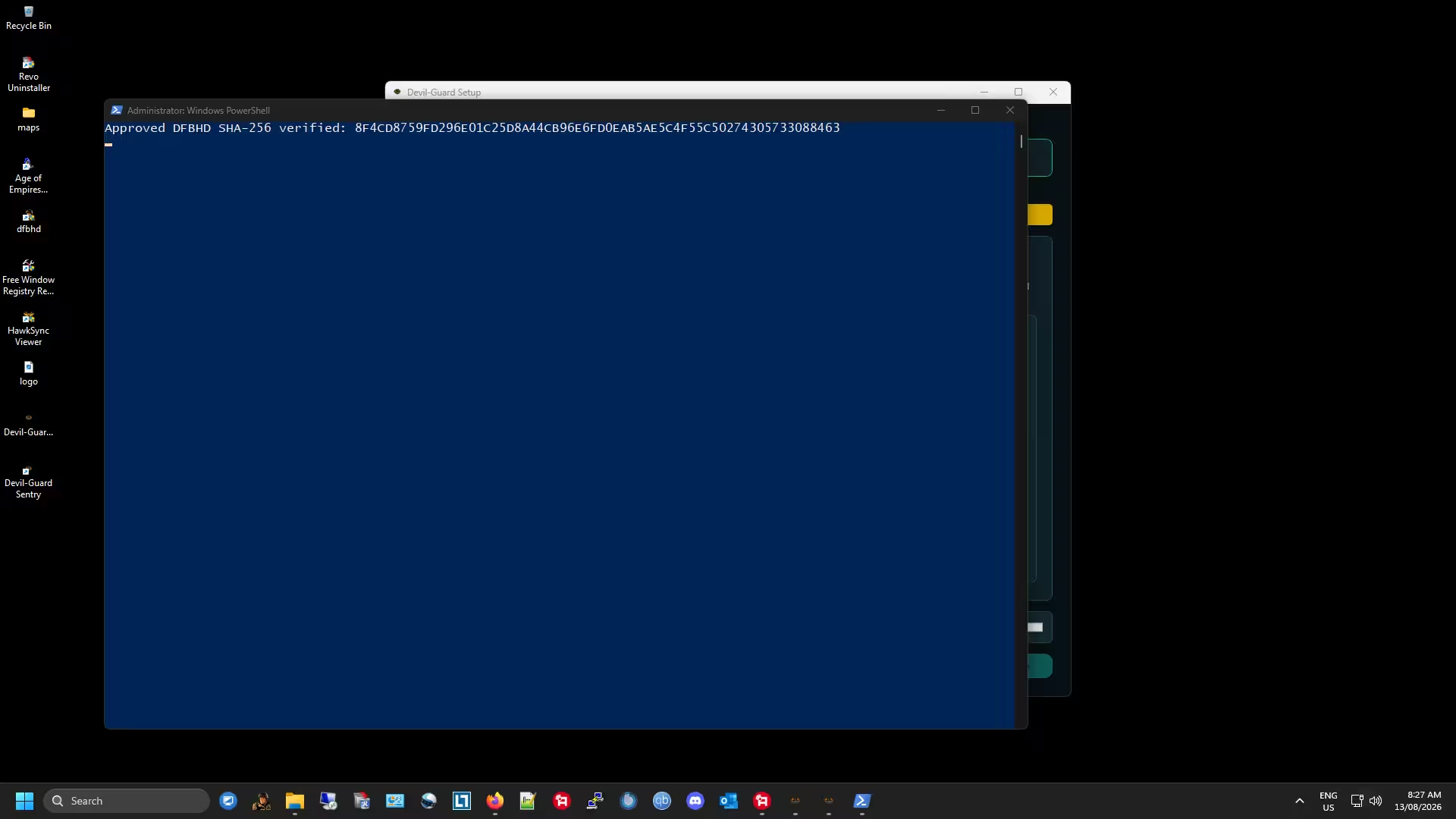
Wait for the PowerShell window to finish and close.
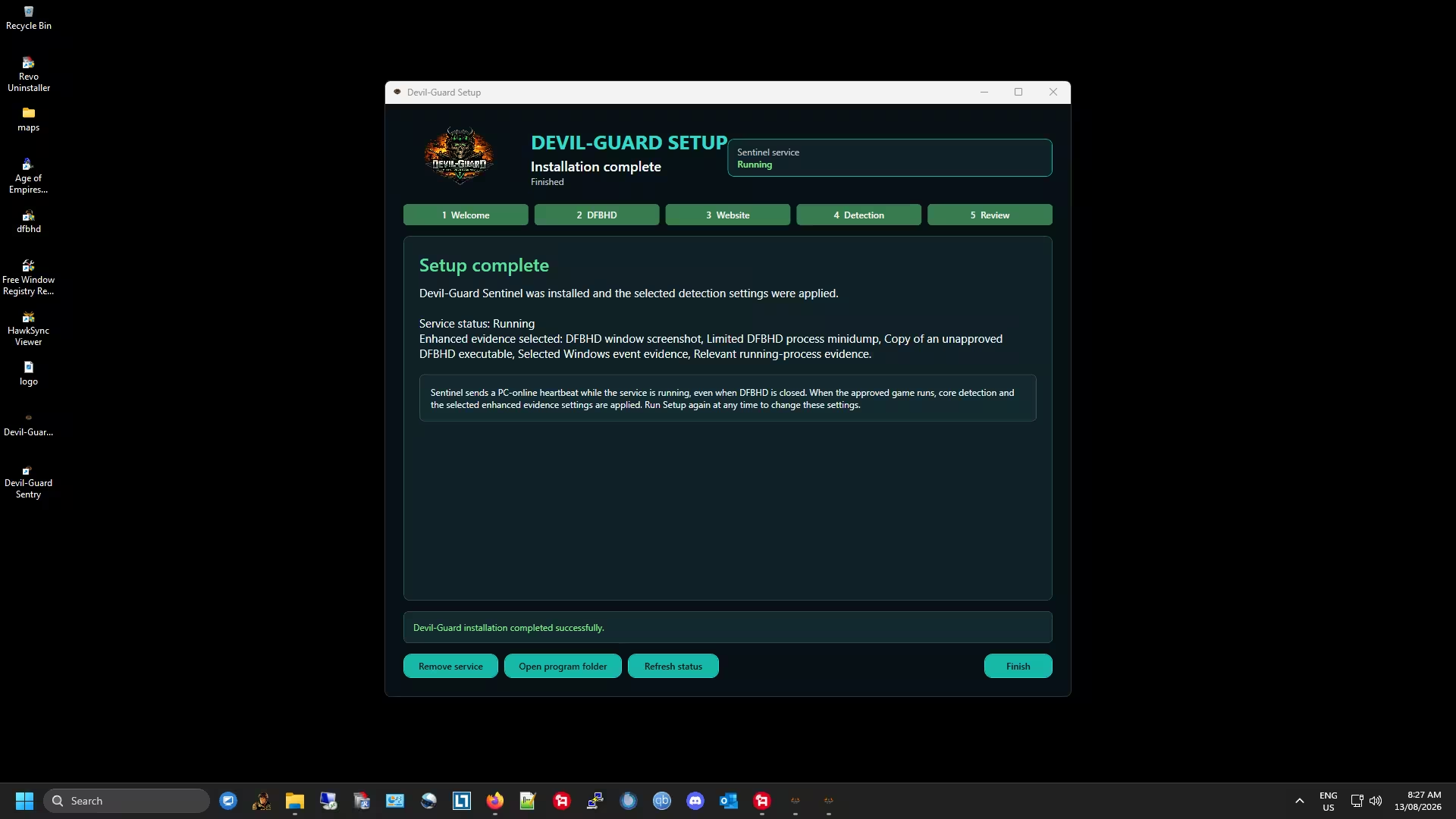
Click the Finish button.
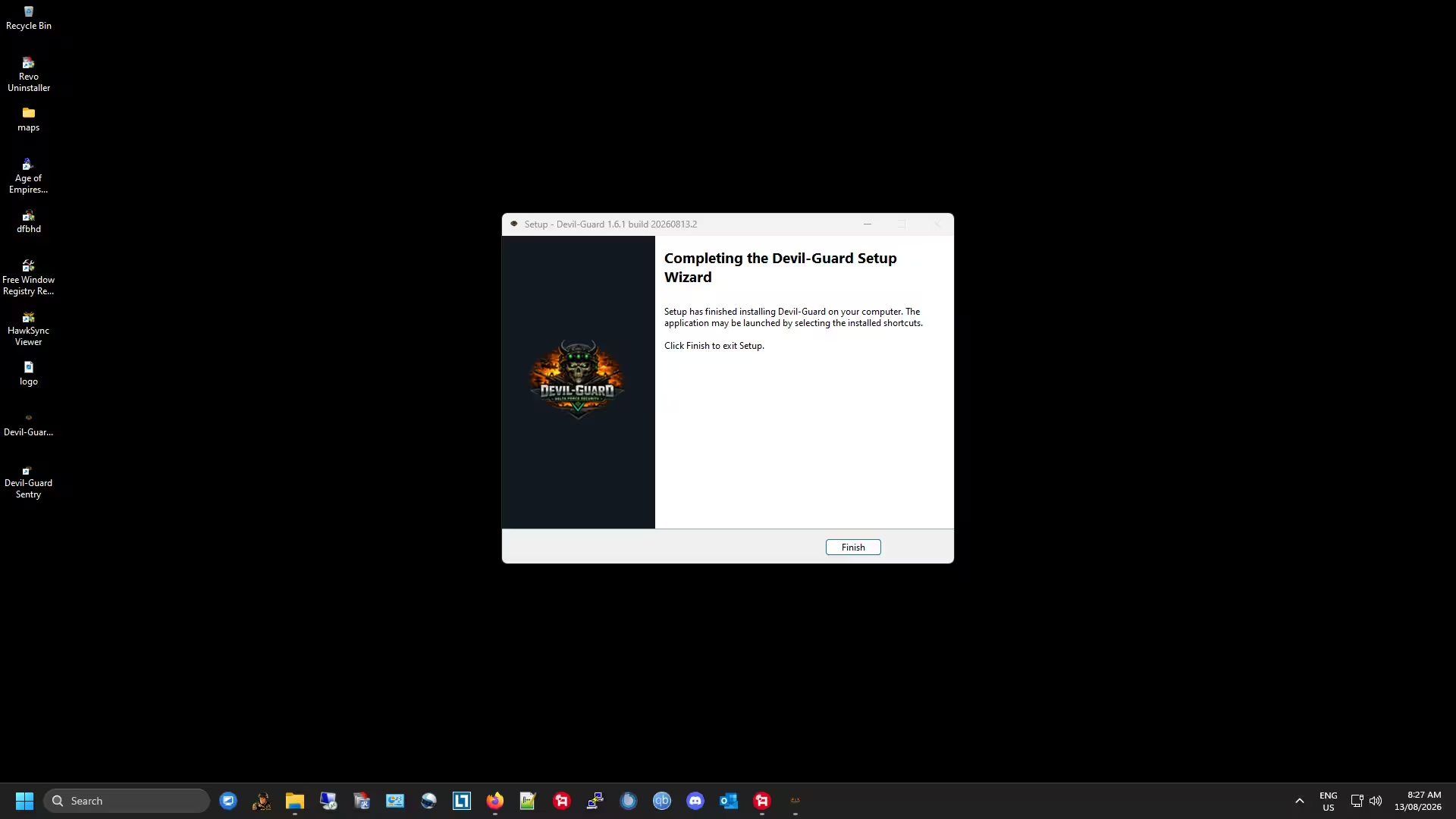
Click the Finish button.
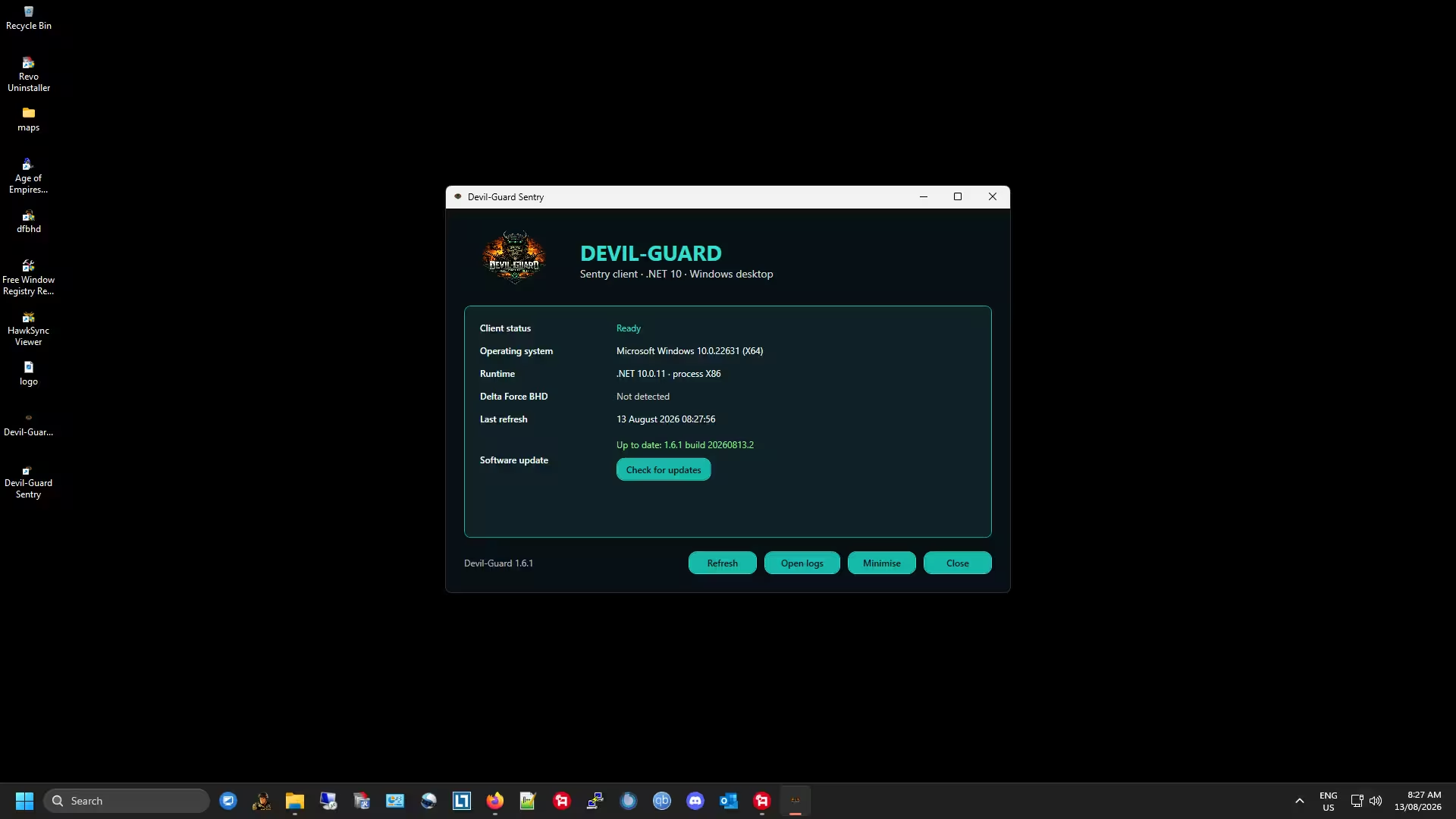
Start the Devil-Guard Sentry shortcut on your desktop.
DevilGuardSentinel is the main protection component. It starts with Windows, watches for the configured DFBHD executable and sends protection status while the game is running.
The accompanying applications configure the game path, player identity and personal client token, display local service status and stage verified software updates. Closing a status window does not stop protection while the Sentinel service remains active.
Checks the configured DFBHD process, selected Direct3D hook bytes, loaded-module topology and monitored game-file metadata on a below-normal-priority scan pass. Overlapping passes are skipped rather than queued.
Performs a full SHA-256 recheck of the approved game executable and monitored top-level EXE, DLL and ASI files. New or normally changed files are hashed immediately on the next monitoring pass instead of waiting for the full audit.
Suspicious loaded-module hashes and signature details are cached and refreshed when the module set changes or at least every minute, reducing repeated disk and signature work during play.
Reviews selected virtual-machine and Docker indicators when those checks are enabled by the current protection policy, without repeating that heavier inventory on every runtime pass.
Uses a device identity and one-time website challenge to sign detailed protection reports so the website can validate where the report came from and whether its contents changed in transit.
Reports to the configured Devil-Guard website over HTTPS using the player’s personal client token. The PC client does not route or proxy DFBHD game traffic.
An executable hash that does not match the approved DFBHD version can be reported for review or enforcement.
Selected Direct3D function changes can be reported when their in-game bytes differ from the expected Windows implementation.
Loaded modules from unexpected locations can be reported with file, publisher and signature details.
New, missing or modified monitored top-level EXE, DLL and ASI files can be reported after the session baseline has been established; changed/new files are hashed immediately and unchanged files are fully revalidated every 60 seconds.
If the Sentinel service is stopped, killed or can no longer submit valid status, the website eventually marks the current protection session as stale.
The player can receive an in-game message explaining that Devil-Guard PC is required and allowing time to start or restore the service.
If valid protection does not return before grace expires, HawkSync can remove the player and the server can apply a temporary Devil-Guard firewall quarantine to the current game connection.
A valid signed report received during grace cancels pending enforcement. A temporary compliance quarantine is removed after its configured expiry unless a separate verified violation requires longer enforcement.
Normal reports can include the protected machine identifier, registered player name, client and session details, game path and executable hash, active detection signals, changed-file metadata, selected module information and environment indicators.
When enabled during setup, a detection can also collect selected evidence such as a DFBHD window screenshot, process minidump, unapproved executable copy, selected Windows event information or a running-process list. These options are intended for confirmed detection review and should be governed by the community’s privacy and retention policy.
It is not a VPN, UDP relay or game proxy. DFBHD traffic continues directly between the player and game server.
The PC client does not add game-server firewall rules or directly ban players. Enforcement commands are handled by the protected server and website.
The patcher can download and verify a package, but the inspected release does not automatically execute the downloaded update.
Personal tokens, machine identifiers, filesystem paths and player IP addresses are not intended for display on public status pages.
Use the current approved release, keep the Sentinel service running while connected and contact the server operator if a legitimate overlay, game version or compatibility tool causes a protection warning.